Defender, Claude Code and the Dev Drive: What We Measured
. Reading time: 7 minutes.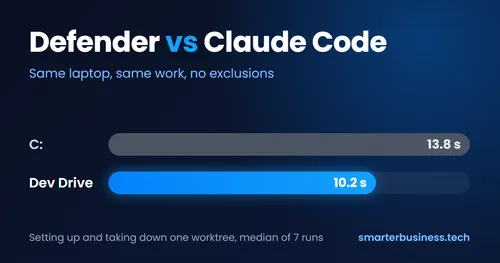
Don’t exclude your code from Defender, put it on a Dev Drive. On our laptop a fresh worktree took about a quarter less time, with Defender still scanning everything.
I opened Task Manager the other day and the two things at the top were Claude and Microsoft Defender’s Antimalware Service, which is what it looks like most days on this laptop. An AI coding agent spends its time doing exactly the things an antivirus is built to watch, it starts shell after shell, installs packages from the internet, writes thousands of small files and deletes them again, and Defender checks every one of them.
So the obvious question was, can I just exclude my working folders from Defender, and is that safe?
The short answer is no, and you don’t need to. Microsoft’s own fix is a Dev Drive, and when I measured it, setting up and taking down a worktree went from 13.8 seconds to 10.2. The rest of this post is why exclusions are the wrong move, what a Dev Drive changes, and the numbers, including the things that made no difference.
The tempting fix
Microsoft’s own guidance is pretty blunt about exclusions, every one is a gap in protection and they should only be used to fix a specific problem. Their list of exclusions to avoid includes your user Temp folder, the program folders of installed apps, and processes such as bash.exe, cmd.exe and powershell.exe.
That last one matters for an agent. A process exclusion tells Defender to skip every file that process opens, so excluding the shell your agent runs would mean nothing it touches gets scanned, including packages it has just downloaded from npm. A folder exclusion on your code isn’t much better, node_modules is exactly where a malicious package would land.
What Microsoft recommends instead
The answer Microsoft gives is a Dev Drive. It’s a separate volume formatted with ReFS rather than NTFS, made for source code, package caches and build output, and you create it in Settings under System, Storage, Advanced storage settings, Disks & volumes. It needs at least 50 GB, which can come from unallocated space, from shrinking an existing volume or from a virtual hard disk file. You can’t convert a drive you already have, formatting it as a Dev Drive wipes it.
Two things change on a Dev Drive. Windows attaches only antivirus filters to it by default, rather than every file system filter on the machine, and a trusted Dev Drive puts Defender into performance mode, where a file is scanned after it opens rather than before, Microsoft’s own summary is “open now, scan later”. Defender is still scanning everything, it just stops holding up each file while it does. Microsoft describes it as giving “significantly better protection” than folder exclusions.
You can check yours in Windows Security, under Virus & threat protection, Manage settings, Dev Drive protection, See volumes. On this laptop the Dev Drive says asynchronous scanning is on, and C: says it’s off.
What we measured
I already had a Dev Drive, so the question was how much difference it actually makes to the work an agent does, measured rather than guessed.
The laptop has an Intel Core Ultra 7 255H and a single 1 TB NVMe SSD, split into C: (NTFS) and a D: Dev Drive (ReFS), so both drives sit on the same hardware. It runs Windows 11 with Defender’s real-time protection on, and the Dev Drive is trusted with performance mode on, which is the default.
The project was the repository for stillsite.ai, an Astro site with 458 npm packages and about 314 MB of node_modules. Claude Code can give each session its own git worktree, and a fresh worktree has no node_modules, so the work I timed is what happens when one starts and finishes:
- clone the repository
npm cifrom an npm cache that was already full, so no step waited on the networknpm run buildgit status, ten times- delete the whole folder
Each of those ran on C: and on the Dev Drive, with the two setups taking turns, seven times each, and I’ve used the median. I also measured the CPU time of Defender’s own process during each step, and started git, node and bash a hundred times each. All of it ran on 3 November 2026. Nothing about Defender or Windows was changed for the test, no exclusions, and Defender was never turned off.
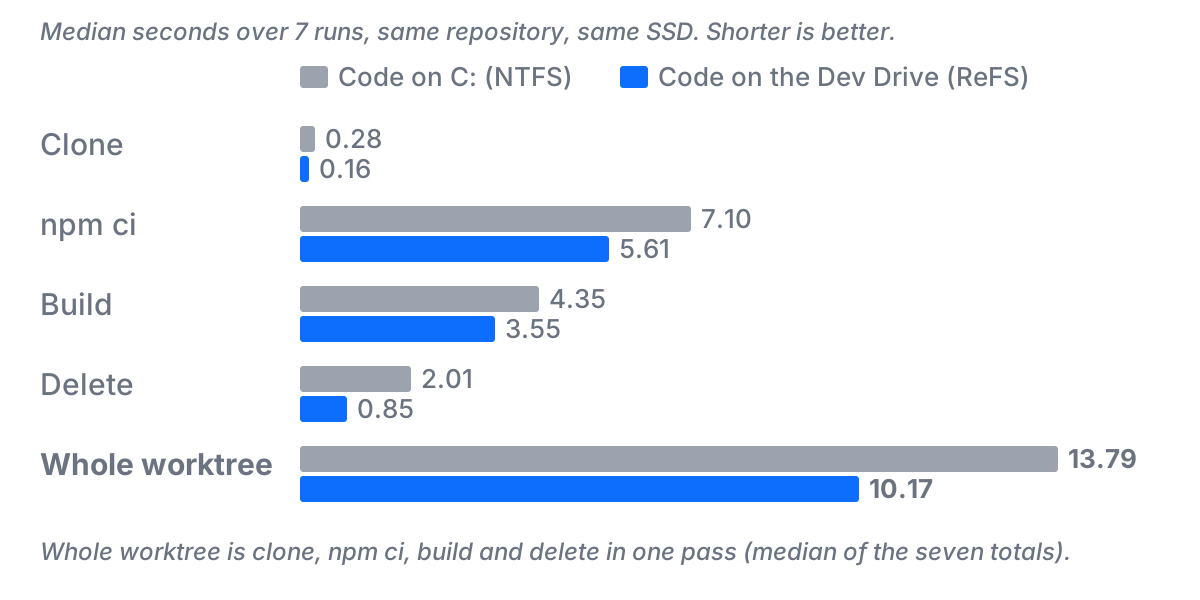
| Step | Code on C: | Code on the Dev Drive | Defender CPU on C: | Defender CPU on the Dev Drive |
|---|---|---|---|---|
| Clone | 0.28 s | 0.16 s | 0.47 s | 0.42 s |
npm ci |
7.10 s | 5.61 s | 15.97 s | 22.75 s |
| Build | 4.35 s | 3.55 s | 2.77 s | 3.78 s |
git status ×10 |
0.26 s | 0.23 s | 0.25 s | 0.19 s |
| Delete | 2.01 s | 0.85 s | 2.75 s | 1.56 s |
| Whole worktree | 13.79 s | 10.17 s |
Defender’s CPU time is counted from the start of each step until Defender went quiet afterwards, and it includes anything else Defender was scanning on the laptop at the time.
What it showed
A fresh worktree took about a quarter less time on the Dev Drive, 10.17 seconds against 13.79. Deleting one took 58% less time, npm ci 21% less and the build 18% less. git status was the same on both, which makes sense, it reads a few hundred files that are already there.
Defender works hard during an install either way. The typical npm ci cost Defender about 16 seconds of CPU time on C: and about 23 on the Dev Drive, counted from the start of the install until Defender went quiet afterwards, for an install that took five to seven seconds. That is the contention I could see in Task Manager. On the Dev Drive Defender did no less work, if anything more, so the gain doesn’t come from Defender skipping files.
What made no difference
Moving the package caches. Microsoft also recommends putting package caches such as npm’s on the Dev Drive. I tried that too, and npm ci went from 5.61 to 5.50 seconds, which is within the normal spread between runs. With a cache that’s already full and a project this size, I couldn’t measure a gain, it may be different for a bigger project or an empty cache.
Starting a Python tool. One of the tools my sessions start is a Python server run through uvx, AWS’s mcp-proxy-for-aws. It took about 3 seconds to start and print its help wherever its files lived, C: or the Dev Drive, so where it lives isn’t what makes it slow.
Starting programs. Starting git took about 18 milliseconds, node about 38 and bash about 17. Those programs live on C:, so moving your code to a Dev Drive doesn’t change that part.
What this doesn’t tell you
It’s one laptop and one repository, and the laptop wasn’t idle, other work was running (the median background load was about 15% CPU), which is why the setups took turns rather than running one after the other. C: and the Dev Drive differ in three ways at once, the file system, the filters attached and the way Defender scans, and I haven’t separated them, because you get all three together when you use a Dev Drive. And it’s only the work on my machine, the time Claude spends thinking happens on Anthropic’s servers and none of this touches it.
Run it yourself
The script I used is here, it’s plain PowerShell, so read it before you run it. Point it at any repository whose npm ci and npm run build work on your machine:
powershell -NoProfile -ExecutionPolicy Bypass -File .\dev-drive-benchmark.ps1 -Source D:\code\my-repo -DevDrive D:It runs from a normal window, changes no settings, and writes its results as CSV files under D:\bench\results.
So, should you exclude your folders?
No. If you’re running Claude Code or any other coding agent on Windows, put your code on a Dev Drive, leave Defender’s performance mode on, and keep your exclusions list empty. It saved about three and a half seconds every time a worktree was set up and taken down here, and it did it without switching any protection off.